Why Backups Aren’t Optional
A WordPress site is a moving target. Every plugin update, theme change, and core upgrade is a chance for something to break. Add in the threats you don’t control, malware injections, a hacked admin account, a botched database migration, or simply a hosting provider having a bad day. The question isn’t whether a site will one day need recovering, but when. When that moment comes, a recent, working backup is the difference between a five-minute restore and a lost weekend rebuilding a site from memory (or worse, from nothing).
The mistake many site owners make is assuming their host has them covered. Some do keep backups, but those are often taken on the same infrastructure as your live site, retained for only a few days. This is critically not something you can rely on the moment you actually need them. If the server that holds your site is the same server that holds your only backup, a single hardware failure or account suspension can take both down at once. That’s why the goal is always an independent, offsite copy of your site that survives whatever happens to the server it came from.
For most people, a backup plugin is the obvious way to get there. And for a healthy site with room to spare, plugins like UpdraftPlus, Duplicator, and BackWPup do the job well. But there’s a specific, common situation where they quietly fall apart: when the site is low on disk space.
Where Traditional Backup Plugins Break Down
If you have a WordPress site on shared cPanel hosting, you’ve probably run into this scenario: a site creeps toward 100% disk usage, and suddenly your backup plugin starts failing silently. Backups time out, half-finished zip files pile up in wp-content, and in a cruel twist, the backup tool itself pushes the account over its quota and takes the site down. The very tool meant to protect you becomes the thing that breaks the site.
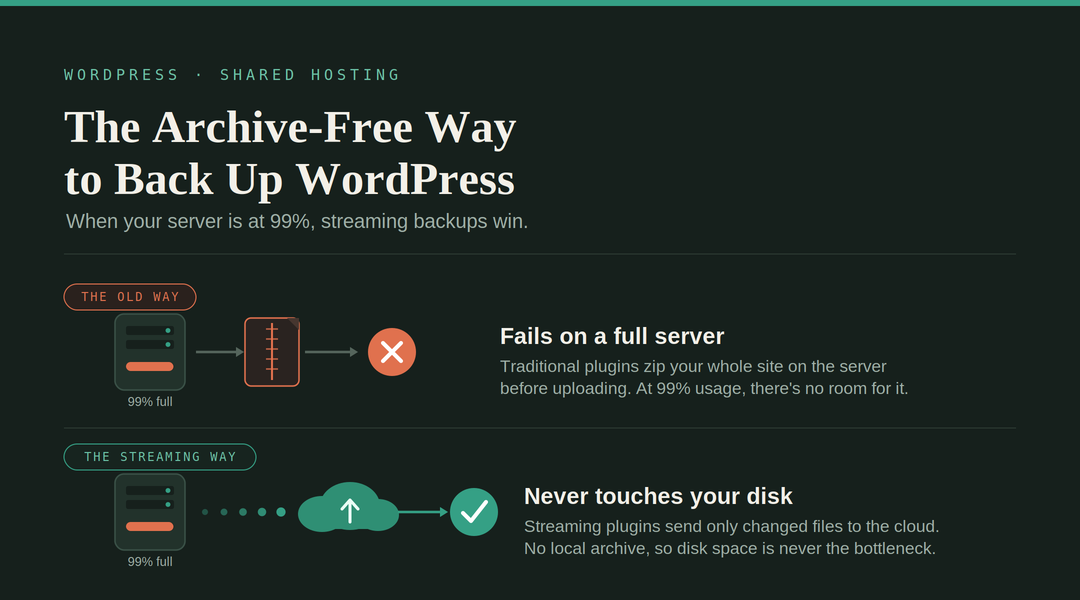
The root of the problem is architectural. Traditional file-based backup plugins all follow the same pattern. They all collect your files and database, compress everything into a zip or tar archive on your own server, and only then push that archive to remote storage like S3, Dropbox, or Google Drive. Even though the finished backup lives somewhere else, the archive has to be built locally first. That staging step means you temporarily need enough free disk space to hold a compressed copy of your entire site which often several gigabytes. On a healthy server, that’s fine. On a server already sitting at 95%+ disk usage, there’s simply nowhere to put it, so the backup fails before it ever leaves the building.
And it’s not only disk space. The archive-first approach is heavy in every dimension: compression is CPU- and memory-intensive, which is why many shared hosts throttle or outright ban these plugins in the first place. Large sites frequently hit PHP execution time limits partway through zipping, leaving corrupted, unusable partial archives behind. So the sites that most need a reliable backup, big, busy, resource-constrained ones – are exactly the sites where the traditional approach is least likely to work.
The good news is that this is a solved problem. It just requires a different class of backup tool: incremental, streaming backups that transfer files and database changes directly to remote storage without ever building an archive on your server. Instead of “zip everything, then upload,” these plugins send your data as they read it, and after the first run they only send what’s changed. No local archive is ever created, so disk space stops being the bottleneck. Here’s what to look for, and the specific plugins that do it well.
What to Look For
Before diving into specific tools, it helps to know the three characteristics that make a backup solution work on a nearly-full server:
No local staging. The tool must stream files directly to the remote destination rather than assembling an archive first. If the documentation talks about “backup archives” being uploaded, it’s staging locally.
Incremental syncing. After the first full backup, only changed files and database rows should be transferred. This keeps each backup run fast and light, which matters on resource-constrained shared hosting.
Offsite processing. The best services do the heavy lifting (deduplication, versioning, compression) on their infrastructure, not yours. Your server’s only job is to hand over the changed data.
The Plugins That Solve This
BlogVault
BlogVault is arguably the gold standard for this use case. Most backup plugins create large zip files every time they take a snapshot, which slows down your site and overloads your server – it’s exactly why many web hosts ban most backup plugins. BlogVault does all the heavy lifting on its own servers, so your site isn’t affected, backups are stored independently off your account, there’s no downtime while a backup runs, and your storage space isn’t touched – which is precisely what you need at 99% disk usage.
It runs a complete backup of your site only the very first time; after that, only the changes since the last backup are picked up, syncing your site in small chunks rather than bundling anything into an archive. BlogVault states it can reliably back up sites up to 500 GB in size, and it’s well-supported across major hosts.
A practical bonus for disaster recovery: BlogVault includes an emergency connector that keeps working even when your site is completely down, so a restore doesn’t depend on WordPress being functional. Pricing starts at roughly $149/year for a single site, with higher tiers for agencies, and there’s a 7-day free trial.
Best for: anyone who wants a set-and-forget solution and doesn’t mind backups living on the vendor’s cloud rather than storage they control.
Jetpack VaultPress Backup
As the official backup solution from Automattic – the company behind WordPress.com – Jetpack VaultPress Backup is a reliable, well-supported choice. It performs real-time incremental backups: every change (a new order, a comment, a post edit) is synced to Automattic’s cloud as it happens, with no archive ever created locally. That makes it especially attractive for WooCommerce stores, where losing even an hour of orders is costly.
The trade-offs: backups are stored only on Automattic’s infrastructure (you can’t point it at your own S3 bucket), and pricing is per-site, which adds up if you manage many sites.
Best for: WooCommerce and high-change sites where real-time protection matters, and single-site owners already in the Jetpack ecosystem.
WP Time Capsule
WP Time Capsule takes a hybrid approach that many technical users prefer: incremental, streaming backups that go to your own cloud storage (Google Drive, Dropbox, Amazon S3, Wasabi, or Backblaze B2). Only the files and database entries that have changed are backed up instead of the whole site every time, and because there’s no compressing or zipping involved, it stays very light on server memory – changes are simply dropped into your connected cloud app.
Since it never compresses or zips, your site’s performance isn’t affected during a backup. And because you connect your own storage account, you retain full ownership of your backup data – a meaningful difference from BlogVault and Jetpack. Pricing is subscription-based with tiers by site count, and historically they’ve offered lifetime deals worth watching for.
Best for: users who want archive-free incremental backups but insist on owning their backup storage.
ManageWP (Orion Backups)
If you manage a fleet of sites, ManageWP’s backup add-on runs incrementally and processes backups on its own cloud infrastructure rather than your server. The free version only offers manual backups, while the premium tier adds scheduled backups to destinations like Dropbox, Google Drive, and Amazon S3, with flexible per-site pricing that stays low for most users (around $2/month per site for the backup add-on). The real draw is the unified dashboard: bulk updates, monitoring, and backups for dozens of client sites in one place.
Best for: freelancers and agencies juggling many small sites who want backups bundled with site management.
BackupWP
A newer plugin worth evaluating, BackupWP was built specifically around the no-archive principle. Unlike traditional plugins that generate large ZIP archives directly on the server, it streams website files and databases straight to the cloud using optimized, resumable transfers, and is designed to minimize CPU usage, RAM consumption, and disk load – squarely aimed at shared hosting environments where resource-heavy backup plugins cause slowdowns, timeouts, and failed backups. As a younger product it has less of a track record than BlogVault or Jetpack, so test restores thoroughly before relying on it.
Best for: shared-hosting users wanting a purpose-built streaming plugin, with the caveat that it’s less battle-tested.
A note on UpdraftPlus Premium
UpdraftPlus deserves an honorable mention with an asterisk. Its premium incremental backups only back up files that have changed, reducing server load and saving storage space – but the underlying architecture still creates archive files locally before upload. Incremental mode makes those archives much smaller, which may squeak by on a moderately full server, but it does not eliminate local staging. If you’re at true 99–100% usage, skip it in favor of the genuinely streaming options above.
Quick Comparison
| Solution | Local archive? | Storage location | Cost | Effort |
|---|---|---|---|---|
| BlogVault | No | Their cloud | ~$149+/yr | Minimal |
| Jetpack VaultPress | No | Automattic cloud | ~$120+/yr | Minimal |
| WP Time Capsule | No | Your own cloud | Subscription | Low |
| ManageWP | No | Their / your cloud | ~$2/mo per site | Low |
| BackupWP | No | Cloud | Freemium | Low |
| UpdraftPlus Premium | Yes (smaller) | Your own cloud | $70+/yr | Low |
These figures are in US dollars
The Bottom Line
For most people staring down a 99% disk-usage warning, BlogVault is the safest recommendation: genuinely zero server-side staging, processing offloaded entirely to their infrastructure, and restores that work even when the site is dead. WP Time Capsule is the pick if owning your backup storage matters to you, and Jetpack VaultPress wins for WooCommerce stores needing real-time protection.
If budget is the constraint, start with BackupWP’s free tier or ManageWP’s low per-site pricing, and upgrade once the sites justify it.
Whichever plugin you choose, do one thing before you trust it: run a test restore to a staging environment. A backup that streams beautifully but doesn’t restore is just expensive network traffic. And once your backups are safely offsite, take the opportunity to reclaim some disk space – old UpdraftPlus archives in wp-content/updraft and orphaned migration zips are often exactly what pushed you to 100% in the first place.